들어가기 전에
조건부 서식은 Excel의 강력한 기능 중 하나입니다(구글 시트에도 있음). 이 기능을 사용하면 셀에 포함된 값에 따라 색상, 아이콘 또는 데이터 막대를 사용해 셀의 모양을 자동으로 변경할 수 있습니다. 조건부 서식을 사용하면 중요한 정보를 한 눈에 빠르게 확인할 수 있어 정보에 입각한 의사 결정을 내리는 데 도움이 됩니다. Python을 사용하여 Excel에서 조건부 서식을 마스터하는 방법을 소개합니다.

이 글은 아래 기사 내용을 토대로 작성되었습니다만, 필자의 개인 의견이나 추가 자료들이 다수 포함되어 있습니다.
- 원문: Mastering Conditional Formatting in Excel Using Python: A Comprehensive Guid
- URL: https://medium.com/@alice.yang_10652/mastering-conditional-formatting-in-excel-using-python-a-comprehensive-guide-9032b196dc7b
파이썬 라이브러리 설치
Python이 설치된 PC라면 Excel 파일을 조작하고 다양한 조건부 서식을 적용할 수 있는 Python용 Spire.XLS 라이브러리를 설치해야 합니다. 이 라이브러리를 설치하려면 다음 단계를 따릅니다.
- 터미널(Windows의 경우 명령 프롬프트, macOS 또는 Linux의 경우 터미널)을 엽니다.
- 다음 명령을 입력하고 Enter 키를 누릅니다.
pip install Spire.Xls
Excel의 조건부 서식 유형 이해
조건부 서식은 다양한 유형으로 제공되며, 각각은 특정 데이터 시각화 요구 사항을 해결하도록 설계되었습니다. Microsoft Excel에서 일반적으로 사용할 수 있는 주요 조건부 서식 유형은 다음과 같습니다.
- 셀 값 기반 : 셀의 값을 기준으로 셀 서식을 지정합니다(예: 보다 큼, 보다 작음).
- 색상 스케일 : 그라데이션 색상을 적용하여 열 지도(heat map)를 만듭니다.
- 데이터 막대 : 셀 값에 비례하는 수평 막대를 추가합니다.
- 아이콘 세트 : 데이터 추세를 나타내기 위해 아이콘(예: 화살표, 신호등)을 삽입합니다.
- 상위/하위 규칙 : 상위 또는 하위 값(예: 상위 10%, 평균 이상)을 강조 표시합니다.
- 중복/고유 값 : 데이터 세트에서 중복되거나 고유한 항목을 강조 표시합니다.
- 날짜 기반 : 날짜 기준(예: 기한 경과, 예정)을 기준으로 셀 서식을 지정합니다.
- 비어 있음/비어 있지 않음 : 비어 있는 셀이나 비어 있지 않은 셀을 강조 표시합니다.
- 사용자 정의 수식 기반 : 수식을 사용하여 복잡한 서식 규칙을 정의합니다.
- 텍스트 기반 : 텍스트 내용을 기준으로 셀 서식을 지정합니다(예: 포함, 다음으로 시작).
- 행/열 기반 : 한 셀의 조건에 따라 전체 행 또는 열의 서식을 지정합니다.
- 오류 또는 경고 서식 : 오류 또는 잘못된 데이터가 있는 셀을 강조 표시합니다.
파이썬에서 Excel에 조건부 서식 추가
Python 라이브러리용 Spire.XLS는 위에서 언급한 거의 모든 조건부 서식 유형을 지원합니다. 아래 예제는 이 라이브러리로 여러 가지 일반적인 조건부 서식 유형을 구현하는 방법을 보여줍니다. 이 문서의 마지막 부분에서는 모든 조건부 서식 기술을 포함하는 완전한 코드 예제를 찾을 수 있습니다.
예제 1: 셀 값 기반 조건부 서식
셀 값 기반 조건부 서식을 사용하면 셀의 숫자 값을 기반으로 서식 규칙을 적용할 수 있습니다. 이는 특정 임계값보다 크거나 작은 값과 같은 특정 기준을 충족하는 셀을 강조 표시하는 데 유용합니다.
from spire.xls import *

# Initialize a new workbook and load an existing Excel file
workbook = Workbook()
workbook.LoadFromFile("conditional_formatting_example.xlsx")

# Access the first worksheet in the workbook
worksheet = workbook.Worksheets[0]

# Create a conditional formatting rule for the range "B2:B6"
format = worksheet.ConditionalFormats.Add()
format.AddRange(worksheet.Range["B2:B6"])

# Define the condition for the formatting rule
condition = format.AddCondition()
# Set the format type to cell value
condition.FormatType = ConditionalFormatType.CellValue
# Set the comparison operator to 'greater than'
condition.Operator = ComparisonOperatorType.Greater
# Specify the threshold value
condition.FirstFormula = "75"
# Set the background color to yellow
condition.BackColor = Color.FromRgb(204, 204, 0)

# Save the modified workbook to a new file
workbook.SaveToFile("CellValueBased.xlsx", ExcelVersion.Version2016)
# Release resources associated with the workbook
workbook.Dispose()

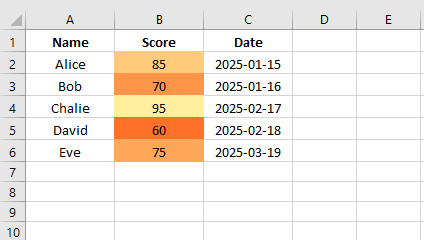
예제 2: 색상 스케일
색상 스케일은 셀의 값을 기반으로 색상 그라디언트를 적용하여 데이터의 시각적 표현을 제공합니다. 이는 특히 대규모 데이터 세트에서 추세와 패턴을 식별하는 데 효과적입니다.
from spire.xls import *

# Initialize a new workbook and load an existing Excel file
workbook = Workbook()
workbook.LoadFromFile("conditional_formatting_example.xlsx")

# Access the first worksheet in the workbook
worksheet = workbook.Worksheets[0]

# Create a conditional formatting rule for the range "B2:B6"
format = worksheet.ConditionalFormats.Add()
format.AddRange(worksheet.Range["B2:B6"])

# Define the condition for the formatting rule
condition = format.AddCondition()
# Set the format type to color scale
condition.FormatType = ConditionalFormatType.ColorScale

# Save the modified workbook to a new file
workbook.SaveToFile("ColorScales.xlsx", ExcelVersion.Version2016)
# Release resources associated with the workbook
workbook.Dispose()
예제 3: 데이터 막대
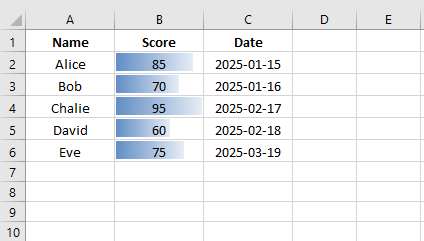
데이터 막대는 수평 막대를 추가하여 셀 내 값의 상대적 크기를 시각적으로 표현합니다. 이를 통해 값을 한눈에 쉽게 비교할 수 있어 숫자 데이터의 가독성이 향상됩니다.
from spire.xls import *

# Initialize a new workbook and load an existing Excel file
workbook = Workbook()
workbook.LoadFromFile("conditional_formatting_example.xlsx")

# Access the first worksheet in the workbook
worksheet = workbook.Worksheets[0]

# Create a conditional formatting rule for the range "B2:B6"
format = worksheet.ConditionalFormats.Add()
format.AddRange(worksheet.Range["B2:B6"])

# Define the condition for the formatting rule
condition = format.AddCondition()
# Set the format type to data bar
condition.FormatType = ConditionalFormatType.DataBar
# Use a gradient fill for the data bar
condition.DataBar.BarFillType = DataBarFillType.DataBarFillGradient
# Set the color of the data bar
condition.DataBar.BarColor = Color.FromRgb(99, 142, 198)

# Save the modified workbook to a new file
workbook.SaveToFile("DataBars.xlsx", ExcelVersion.Version2016)
# Release resources associated with the workbook
workbook.Dispose()
예제 4: 아이콘 세트
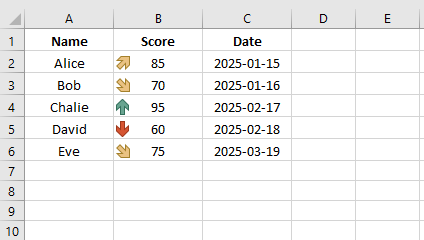
아이콘 세트는 데이터 추세와 범주를 나타내는 데 기호를 사용합니다. 화살표나 신호등과 같은 아이콘을 적용하면 데이터 세트의 값 상태나 비교를 빠르게 전달할 수 있습니다.
from spire.xls import *

# Initialize a new workbook and load an existing Excel file
workbook = Workbook()
workbook.LoadFromFile("conditional_formatting_example.xlsx")

# Access the first worksheet in the workbook
worksheet = workbook.Worksheets[0]

# Create a conditional formatting rule for the range "B2:B6"
format = worksheet.ConditionalFormats.Add()
format.AddRange(worksheet.Range["B2:B6"])

# Define the condition for the formatting rule
condition = format.AddCondition()
# Set the format type to icon set
condition.FormatType = ConditionalFormatType.IconSet
# Define the type of icon set to four arrows
condition.IconSet.IconSetType = IconSetType.FourArrows

# Save the modified workbook to a new file
workbook.SaveToFile("IconSets.xlsx", ExcelVersion.Version2016)
# Release resources associated with the workbook
workbook.Dispose()
예제 5: 상위/하위 규칙
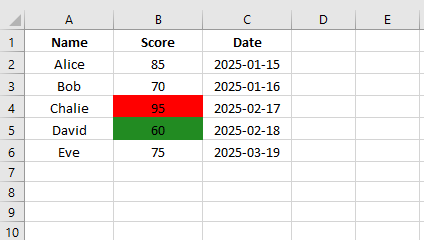
상위 및 하위 규칙을 사용하면 데이터 세트에서 가장 높은 값이나 가장 낮은 값을 강조 표시할 수 있습니다. 이는 상위 성과자 또는 하위 성과자와 같은 주요 데이터 포인트를 식별하는 데 유용합니다.
from spire.xls import *

# Initialize a new workbook and load an existing Excel file
workbook = Workbook()
workbook.LoadFromFile("conditional_formatting_example.xlsx")

# Access the first worksheet in the workbook
sheet = workbook.Worksheets[0]

# Create a conditional formatting rule for the range "B2:B6"
format_1 = sheet.ConditionalFormats.Add()
format_1.AddRange(sheet.Range["B2:B6"])

# Add a condition to format the top 2 ranked values in the specified range
condition_1 = format_1.AddTopBottomCondition(TopBottomType.Top, 1)
# Set the background color for the top values to red
condition_1.BackColor = Color.get_Red()

# Create another conditional formatting rule for the range "B2:B6"
format_2 = sheet.ConditionalFormats.Add()
format_2.AddRange(sheet.Range["B2:B6"])

# Add a condition to format the bottom 2 ranked values in the specified range
condition_2 = format_2.AddTopBottomCondition(TopBottomType.Bottom, 1)
# Set the background color for the bottom values to forest green
condition_2.BackColor = Color.get_ForestGreen()

# Save the modified workbook to a new file
workbook.SaveToFile("TopOrBottomRules.xlsx", ExcelVersion.Version2016)
# Release resources associated with the workbook
workbook.Dispose()
예제 6: 중복/고유 값
이 유형의 서식은 데이터에서 중복 또는 고유한 항목을 식별하는 데 도움이 됩니다. 특히 데이터 검증 및 데이터 무결성 보장에 유용합니다.
from spire.xls import *

# Initialize a new workbook and load an existing Excel file
workbook = Workbook()
workbook.LoadFromFile("conditional_formatting_example.xlsx")

# Access the first worksheet in the workbook
sheet = workbook.Worksheets[0]

# Create a conditional formatting rule for the range "B2:B6"
format_1 = sheet.ConditionalFormats.Add()
format_1.AddRange(sheet.Range["B2:B6"])

# Add a condition to format cells that contain duplicate values
condition_1 = format_1.AddCondition()
condition_1.FormatType = ConditionalFormatType.DuplicateValues
# Set the background color for the duplicate values to light yellow
condition_1.BackColor = Color.get_LightYellow()

# Create another conditional formatting rule for the range "B2:B6"
format_2 = sheet.ConditionalFormats.Add()
format_2.AddRange(sheet.Range["B2:B6"])

# Add a condition to format cells that contain unique values
condition_2 = format_2.AddCondition()
condition_2.FormatType = ConditionalFormatType.UniqueValues
# Set the background color for the unique values to sky blue
condition_2.BackColor = Color.get_SkyBlue()

# Save the modified workbook to a new file
workbook.SaveToFile("DuplicateOrUniqueValues.xlsx", ExcelVersion.Version2016)
# Release resources associated with the workbook
workbook.Dispose()
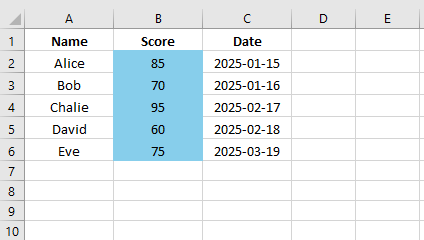
예제 7: 날짜 기반
날짜 기반 조건부 서식을 사용하면 과거 기한을 강조하는 것과 같이 특정 날짜 기준에 따라 셀을 서식 지정할 수 있습니다. 이는 마감일과 타임라인을 관리하는 데 유용합니다.
from spire.xls import *

# Initialize a new workbook and load an existing Excel file
workbook = Workbook()
workbook.LoadFromFile("conditional_formatting_example.xlsx")

# Access the first worksheet in the workbook
sheet = workbook.Worksheets[0]

# Create a conditional formatting rule for the range "B2:B6"
format = sheet.ConditionalFormats.Add()
format.AddRange(sheet.Range["C2:C6"])

# Add a condition to format cells that contain dates from the last month
condition = format.AddTimePeriodCondition(TimePeriodType.LastMonth)
# Set the background color for these dates to orange
condition.BackColor = Color.get_Orange()

# Save the modified workbook to a new file
workbook.SaveToFile("DateBasedFormatting.xlsx", ExcelVersion.Version2016)
# Release resources associated with the workbook
workbook.Dispose()

완전한 코드 예제
아래의 전체 예에서는 Python과 Python용 Spire.XLS를 사용하여 다양한 유형의 조건부 서식을 Excel 워크시트에 적용하는 방법을 확인할 수 있습니다.
from spire.xls import *

# Adds various types of conditional formatting to a new Excel sheet.
def AddConditionalFormattingForNewSheet(sheet):
    # Add default icon sets to the sheet
    AddDefaultIconSet(sheet)
    AddIconSet2(sheet)
    AddIconSet3(sheet)
    AddIconSet4(sheet)
    AddIconSet5(sheet)
    AddIconSet6(sheet)
    AddIconSet7(sheet)
    AddIconSet8(sheet)
    AddIconSet9(sheet)
    AddIconSet10(sheet)
    AddIconSet11(sheet)
    AddIconSet12(sheet)
    AddIconSet13(sheet)
    AddIconSet14(sheet)
    AddIconSet15(sheet)
    AddIconSet16(sheet)
    AddIconSet17(sheet)
    AddIconSet18(sheet)

    # Add default color scales
    AddDefaultColorScale(sheet)
    Add3ColorScale(sheet)
    Add2ColorScale(sheet)

    # Add various average-based conditional formatting
    AddAboveAverage(sheet)
    AddAboveAverage2(sheet)
    AddAboveAverage3(sheet)

    # Add top/bottom 10 conditional formatting
    AddTop10_1(sheet)
    AddTop10_2(sheet)
    AddTop10_3(sheet)
    AddTop10_4(sheet)

    # Add data bar conditional formatting
    AddDataBar1(sheet)
    AddDataBar2(sheet)

    # Add text-based conditional formatting
    AddContainsText(sheet)
    AddNotContainsText(sheet)
    AddContainsBlank(sheet)
    AddNotContainsBlank(sheet)
    AddBeginWith(sheet)
    AddEndWith(sheet)
    AddContainsError(sheet)
    AddNotContainsError(sheet)
    AddDuplicate(sheet)
    AddUnique(sheet)

    # Add time period based conditional formatting
    AddTimePeriod_1(sheet)
    AddTimePeriod_2(sheet)
    AddTimePeriod_3(sheet)
    AddTimePeriod_4(sheet)
    AddTimePeriod_5(sheet)
    AddTimePeriod_6(sheet)
    AddTimePeriod_7(sheet)
    AddTimePeriod_8(sheet)
    AddTimePeriod_9(sheet)
    AddTimePeriod_10(sheet)

    # Configure the layout of the sheet
    sheet.AllocatedRange.ColumnWidth = 15
    sheet.AllocatedRange.AutoFitRows()

# This method implements the IconSet conditional formatting type with a ThreeArrows icon set.
def AddIconSet2(sheet):
    xcfs = sheet.ConditionalFormats.Add()
    xcfs.AddRange(sheet.Range["M1:O2"])
    sheet.Range["M1:O2"].Style.FillPattern = ExcelPatternType.Solid
    sheet.Range["M1:O2"].Style.Color = Color.get_AliceBlue()
    cf = xcfs.AddCondition()
    cf.FormatType = ConditionalFormatType.IconSet
    cf.IconSet.IconSetType = IconSetType.ThreeArrows
    # Set values and labels for the icon set
    sheet.Range["M1"].Text = "ThreeArrows"
    sheet.Range["N1"].NumberValue = 15
    sheet.Range["O1"].NumberValue = 18
    sheet.Range["M2"].NumberValue = 14
    sheet.Range["N2"].NumberValue = 17
    sheet.Range["O2"].NumberValue = 20

# This method implements the IconSet conditional formatting type with a FourArrows icon set.
def AddIconSet3(sheet):
    xcfs = sheet.ConditionalFormats.Add()
    xcfs.AddRange(sheet.Range["M3:O4"])
    sheet.Range["M3:O4"].Style.FillPattern = ExcelPatternType.Solid
    sheet.Range["M3:O4"].Style.Color = Color.get_AntiqueWhite()
    cf = xcfs.AddCondition()
    cf.FormatType = ConditionalFormatType.IconSet
    cf.IconSet.IconSetType = IconSetType.FourArrows
    # Set values and labels for the FourArrows icon set
    sheet.Range["M3"].Text = "FourArrows"
    sheet.Range["N3"].NumberValue = 17
    sheet.Range["O3"].NumberValue = 20
    sheet.Range["M4"].NumberValue = 16
    sheet.Range["N4"].NumberValue = 19
    sheet.Range["O4"].NumberValue = 22

# This method implements the IconSet conditional formatting type with a FiveArrows icon set.
def AddIconSet4(sheet):
    xcfs = sheet.ConditionalFormats.Add()
    xcfs.AddRange(sheet.Range["M5:O6"])
    sheet.Range["M5:O6"].Style.FillPattern = ExcelPatternType.Solid
    sheet.Range["M5:O6"].Style.Color = Color.get_Aqua()
    cf = xcfs.AddCondition()
    cf.FormatType = ConditionalFormatType.IconSet
    cf.IconSet.IconSetType = IconSetType.FiveArrows
    # Set values and labels for the FiveArrows icon set
    sheet.Range["M5"].Text = "FiveArrows"
    sheet.Range["N5"].NumberValue = 17
    sheet.Range["O5"].NumberValue = 20
    sheet.Range["M6"].NumberValue = 16
    sheet.Range["N6"].NumberValue = 19
    sheet.Range["O6"].NumberValue = 22

# This method implements the IconSet conditional formatting type with a ThreeArrowsGray icon set.
def AddIconSet5(sheet):
    xcfs = sheet.ConditionalFormats.Add()
    xcfs.AddRange(sheet.Range["M7:O8"])
    sheet.Range["M7:O8"].Style.FillPattern = ExcelPatternType.Solid
    sheet.Range["M7:O8"].Style.Color = Color.get_Aquamarine()
    cf = xcfs.AddCondition()
    cf.FormatType = ConditionalFormatType.IconSet
    cf.IconSet.IconSetType = IconSetType.ThreeArrowsGray
    # Set values and labels for the ThreeArrowsGray icon set
    sheet.Range["M7"].Text = "ThreeArrowsGray"
    sheet.Range["N7"].NumberValue = 21
    sheet.Range["O7"].NumberValue = 24
    sheet.Range["M8"].NumberValue = 20
    sheet.Range["N8"].NumberValue = 23
    sheet.Range["O8"].NumberValue = 26

# This method implements the IconSet conditional formatting type with a FourArrowsGray icon set.
def AddIconSet6(sheet):
    xcfs = sheet.ConditionalFormats.Add()
    xcfs.AddRange(sheet.Range["M9:O10"])
    sheet.Range["M9:O10"].Style.FillPattern = ExcelPatternType.Solid
    sheet.Range["M9:O10"].Style.Color = Color.get_Azure()
    cf = xcfs.AddCondition()
    cf.FormatType = ConditionalFormatType.IconSet
    cf.IconSet.IconSetType = IconSetType.FourArrowsGray
    # Set values and labels for the FourArrowsGray icon set
    sheet.Range["M9"].Text = "FourArrowsGray"
    sheet.Range["N9"].NumberValue = 23
    sheet.Range["O9"].NumberValue = 26
    sheet.Range["M10"].NumberValue = 22
    sheet.Range["N10"].NumberValue = 25
    sheet.Range["O10"].NumberValue = 28

# This method implements the IconSet conditional formatting type with a FiveArrowsGray icon set.
def AddIconSet7(sheet):
    xcfs = sheet.ConditionalFormats.Add()
    xcfs.AddRange(sheet.Range["M11:O12"])
    sheet.Range["M11:O12"].Style.FillPattern = ExcelPatternType.Solid
    sheet.Range["M11:O12"].Style.Color = Color.get_Beige()
    cf = xcfs.AddCondition()
    cf.FormatType = ConditionalFormatType.IconSet
    cf.IconSet.IconSetType = IconSetType.FiveArrowsGray
    # Set values and labels for the FiveArrowsGray icon set
    sheet.Range["M11"].Text = "FiveArrowsGray"
    sheet.Range["N11"].NumberValue = 25
    sheet.Range["O11"].NumberValue = 28
    sheet.Range["M12"].NumberValue = 24
    sheet.Range["N12"].NumberValue = 27
    sheet.Range["O12"].NumberValue = 30

# This method implements the IconSet conditional formatting type with a ThreeFlags icon set.
def AddIconSet8(sheet):
    xcfs = sheet.ConditionalFormats.Add()
    xcfs.AddRange(sheet.Range["M13:O14"])
    sheet.Range["M13:O14"].Style.FillPattern = ExcelPatternType.Solid
    sheet.Range["M13:O14"].Style.Color = Color.get_Bisque()
    cf = xcfs.AddCondition()
    cf.FormatType = ConditionalFormatType.IconSet
    cf.IconSet.IconSetType = IconSetType.ThreeFlags
    # Set values and labels for the ThreeFlags icon set
    sheet.Range["M13"].Text = "ThreeFlags"
    sheet.Range["N13"].NumberValue = 27
    sheet.Range["O13"].NumberValue = 30
    sheet.Range["M14"].NumberValue = 26
    sheet.Range["N14"].NumberValue = 29
    sheet.Range["O14"].NumberValue = 32

# This method implements the IconSet conditional formatting type with a FiveQuarters icon set.
def AddIconSet9(sheet):
    xcfs = sheet.ConditionalFormats.Add()
    xcfs.AddRange(sheet.Range["M15:O16"])
    sheet.Range["M15:O16"].Style.FillPattern = ExcelPatternType.Solid
    sheet.Range["M15:O16"].Style.Color = Color.get_BlanchedAlmond()
    cf = xcfs.AddCondition()
    cf.FormatType = ConditionalFormatType.IconSet
    cf.IconSet.IconSetType = IconSetType.FiveQuarters
    # Set values and labels for the FiveQuarters icon set
    sheet.Range["M15"].Text = "FiveQuarters"
    sheet.Range["N15"].NumberValue = 29
    sheet.Range["O15"].NumberValue = 32
    sheet.Range["M16"].NumberValue = 28
    sheet.Range["N16"].NumberValue = 31
    sheet.Range["O16"].NumberValue = 34

# This method implements the IconSet conditional formatting type with a FourRating icon set.
def AddIconSet10(sheet):
    xcfs = sheet.ConditionalFormats.Add()
    xcfs.AddRange(sheet.Range["M17:O18"])
    sheet.Range["M17:O18"].Style.FillPattern = ExcelPatternType.Solid
    sheet.Range["M17:O18"].Style.Color = Color.get_LightBlue()
    cf = xcfs.AddCondition()
    cf.FormatType = ConditionalFormatType.IconSet
    cf.IconSet.IconSetType = IconSetType.FourRating
    # Set values and labels for the FourRating icon set
    sheet.Range["M17"].Text = "FourRating"
    sheet.Range["N17"].NumberValue = 31
    sheet.Range["O17"].NumberValue = 34
    sheet.Range["M18"].NumberValue = 30
    sheet.Range["N18"].NumberValue = 33
    sheet.Range["O18"].NumberValue = 36

# This method implements the IconSet conditional formatting type with a FiveRating icon set.
def AddIconSet11(sheet):
    xcfs = sheet.ConditionalFormats.Add()
    xcfs.AddRange(sheet.Range["M19:O20"])
    sheet.Range["M19:O20"].Style.FillPattern = ExcelPatternType.Solid
    sheet.Range["M19:O20"].Style.Color = Color.get_BlueViolet()
    cf = xcfs.AddCondition()
    cf.FormatType = ConditionalFormatType.IconSet
    cf.IconSet.IconSetType = IconSetType.FiveRating
    # Set values and labels for the FiveRating icon set
    sheet.Range["M19"].Text = "FiveRating"
    sheet.Range["N19"].NumberValue = 33
    sheet.Range["O19"].NumberValue = 36
    sheet.Range["M20"].NumberValue = 32
    sheet.Range["N20"].NumberValue = 35
    sheet.Range["O20"].NumberValue = 38

# This method implements the IconSet conditional formatting type with a FourRedToBlack icon set.
def AddIconSet12(sheet):
    xcfs = sheet.ConditionalFormats.Add()
    xcfs.AddRange(sheet.Range["M21:O22"])
    sheet.Range["M21:O22"].Style.FillPattern = ExcelPatternType.Solid
    sheet.Range["M21:O22"].Style.Color = Color.get_Brown()
    cf = xcfs.AddCondition()
    cf.FormatType = ConditionalFormatType.IconSet
    cf.IconSet.IconSetType = IconSetType.FourRedToBlack
    # Set values and labels for the FourRedToBlack icon set
    sheet.Range["M21"].Text = "FourRedToBlack"
    sheet.Range["N21"].NumberValue = 35
    sheet.Range["O21"].NumberValue = 38
    sheet.Range["M22"].NumberValue = 34
    sheet.Range["N22"].NumberValue = 37
    sheet.Range["O22"].NumberValue = 40

# This method implements the IconSet conditional formatting type with a ThreeSigns icon set.
def AddIconSet13(sheet):
    xcfs = sheet.ConditionalFormats.Add()
    xcfs.AddRange(sheet.Range["M23:O24"])
    sheet.Range["M23:O24"].Style.FillPattern = ExcelPatternType.Solid
    sheet.Range["M23:O24"].Style.Color = Color.get_BurlyWood()
    cf = xcfs.AddCondition()
    cf.FormatType = ConditionalFormatType.IconSet
    cf.IconSet.IconSetType = IconSetType.ThreeSigns
    # Set values and labels for the ThreeSigns icon set
    sheet.Range["M23"].Text = "ThreeSigns"
    sheet.Range["N23"].NumberValue = 37
    sheet.Range["O23"].NumberValue = 40
    sheet.Range["M24"].NumberValue = 36
    sheet.Range["N24"].NumberValue = 39
    sheet.Range["O24"].NumberValue = 42

# This method implements the IconSet conditional formatting type with a ThreeSymbols icon set.
def AddIconSet14(sheet):
    xcfs = sheet.ConditionalFormats.Add()
    xcfs.AddRange(sheet.Range["M25:O26"])
    sheet.Range["M25:O26"].Style.FillPattern = ExcelPatternType.Solid
    sheet.Range["M25:O26"].Style.Color = Color.get_CadetBlue()
    cf = xcfs.AddCondition()
    cf.FormatType = ConditionalFormatType.IconSet
    cf.IconSet.IconSetType = IconSetType.ThreeSymbols
    # Set values and labels for the ThreeSymbols icon set
    sheet.Range["M25"].Text = "ThreeSymbols"
    sheet.Range["N25"].NumberValue = 39
    sheet.Range["O25"].NumberValue = 42
    sheet.Range["M26"].NumberValue = 38
    sheet.Range["N26"].NumberValue = 41
    sheet.Range["O26"].NumberValue = 44

# This method implements the IconSet conditional formatting type with a ThreeSymbols2 icon set.
def AddIconSet15(sheet):
    xcfs = sheet.ConditionalFormats.Add()
    xcfs.AddRange(sheet.Range["M27:O28"])
    sheet.Range["M27:O28"].Style.FillPattern = ExcelPatternType.Solid
    sheet.Range["M27:O28"].Style.Color = Color.get_Chartreuse()
    cf = xcfs.AddCondition()
    cf.FormatType = ConditionalFormatType.IconSet
    cf.IconSet.IconSetType = IconSetType.ThreeSymbols2
    # Set values and labels for the ThreeSymbols2 icon set
    sheet.Range["M27"].Text = "ThreeSymbols2"
    sheet.Range["N27"].NumberValue = 41
    sheet.Range["O27"].NumberValue = 44
    sheet.Range["M28"].NumberValue = 40
    sheet.Range["N28"].NumberValue = 43
    sheet.Range["O28"].NumberValue = 46

# This method implements the IconSet conditional formatting type with a ThreeTrafficLights1 icon set.
def AddIconSet16(sheet):
    xcfs = sheet.ConditionalFormats.Add()
    xcfs.AddRange(sheet.Range["M29:O30"])
    sheet.Range["M29:O30"].Style.FillPattern = ExcelPatternType.Solid
    sheet.Range["M29:O30"].Style.Color = Color.get_Chocolate()
    cf = xcfs.AddCondition()
    cf.FormatType = ConditionalFormatType.IconSet
    cf.IconSet.IconSetType = IconSetType.ThreeTrafficLights1
    # Set values and labels for the ThreeTrafficLights1 icon set
    sheet.Range["M29"].Text = "ThreeTrafficLights1"
    sheet.Range["N29"].NumberValue = 43
    sheet.Range["O29"].NumberValue = 46
    sheet.Range["M30"].NumberValue = 42
    sheet.Range["N30"].NumberValue = 45
    sheet.Range["O30"].NumberValue = 48

# This method implements the IconSet conditional formatting type with a ThreeTrafficLights2 icon set.
def AddIconSet17(sheet):
    xcfs = sheet.ConditionalFormats.Add()
    xcfs.AddRange(sheet.Range["M31:O32"])
    sheet.Range["M31:O32"].Style.FillPattern = ExcelPatternType.Solid
    sheet.Range["M31:O32"].Style.Color = Color.get_Coral()
    cf = xcfs.AddCondition()
    cf.FormatType = ConditionalFormatType.IconSet
    cf.IconSet.IconSetType = IconSetType.ThreeTrafficLights2
    # Set values and labels for the ThreeTrafficLights2 icon set
    sheet.Range["M31"].Text = "ThreeTrafficLights2"
    sheet.Range["N31"].NumberValue = 45
    sheet.Range["O31"].NumberValue = 48
    sheet.Range["M32"].NumberValue = 44
    sheet.Range["N32"].NumberValue = 47
    sheet.Range["O32"].NumberValue = 50

# This method implements the IconSet conditional formatting type with a FourTrafficLights icon set.
def AddIconSet18(sheet):
    xcfs = sheet.ConditionalFormats.Add()
    xcfs.AddRange(sheet.Range["M33:O35"])
    sheet.Range["M33:O35"].Style.FillPattern = ExcelPatternType.Solid
    sheet.Range["M33:O35"].Style.Color = Color.get_CornflowerBlue()
    cf = xcfs.AddCondition()
    cf.FormatType = ConditionalFormatType.IconSet
    cf.IconSet.IconSetType = IconSetType.FourTrafficLights
    # Set values and labels for the FourTrafficLights icon set
    sheet.Range["M33"].Text = "FourTrafficLights"
    sheet.Range["N33"].NumberValue = 48
    sheet.Range["O33"].NumberValue = 52
    sheet.Range["M34"].NumberValue = 46
    sheet.Range["N34"].NumberValue = 50
    sheet.Range["O34"].NumberValue = 54
    sheet.Range["M35"].NumberValue = 48
    sheet.Range["N35"].NumberValue = 52
    sheet.Range["O35"].NumberValue = 56

# This method implements the TimePeriod conditional formatting type with Yesterday attribute.
def AddTimePeriod_10(sheet):
    conds = sheet.ConditionalFormats.Add()
    conds.AddRange(sheet.Range["I19:K20"])
    sheet.Range["I19:K20"].Style.FillPattern = ExcelPatternType.Solid
    sheet.Range["I19:K20"].Style.Color = Color.get_MediumSeaGreen()
    cf = conds.AddTimePeriodCondition(TimePeriodType.Yesterday)
    cf.FillPattern = ExcelPatternType.Solid
    cf.BackColor = Color.get_Pink()
    # Set date values for the Yesterday condition
    c = sheet.Range["I19"]
    c.Value2 = DateTime.get_Now().AddDays(-2).Date
    c = sheet.Range["J19"]
    c.Value2 = DateTime.get_Now().AddDays(-1).Date
    c = sheet.Range["K19"]
    c.Value2 = DateTime.get_Now().Date
    c = sheet.Range["I20"]
    c.Text = "Yesterday"
    c = sheet.Range["J20"]
    c.Value2 = DateTime.get_Now().AddDays(1).Date
    c = sheet.Range["K20"]
    c.Value2 = DateTime.get_Now().AddDays(2).Date

# This method implements the TimePeriod conditional formatting type with Tomorrow attribute.
def AddTimePeriod_9(sheet):
    conds = sheet.ConditionalFormats.Add()
    conds.AddRange(sheet.Range["I17:K18"])
    sheet.Range["I17:K18"].Style.FillPattern = ExcelPatternType.Solid
    sheet.Range["I17:K18"].Style.Color = Color.get_MediumPurple()
    cf = conds.AddTimePeriodCondition(TimePeriodType.Tomorrow)
    cf.FillPattern = ExcelPatternType.Solid
    cf.BackColor = Color.get_Pink()
    # Set date values for the Tomorrow condition
    c = sheet.Range["I17"]
    c.Value2 = DateTime.get_Now().AddDays(-2).Date
    c = sheet.Range["J17"]
    c.Value2 = DateTime.get_Now().AddDays(-1).Date
    c = sheet.Range["K17"]
    c.Value2 = DateTime.get_Now().Date
    c = sheet.Range["I18"]
    c.Text = "Tomorrow"
    c = sheet.Range["J18"]
    c.Value2 = DateTime.get_Now().AddDays(1).Date
    c = sheet.Range["K18"]
    c.Value2 = DateTime.get_Now().AddDays(2).Date

# This method implements the TimePeriod conditional formatting type with ThisWeek attribute.
def AddTimePeriod_8(sheet):
    conds = sheet.ConditionalFormats.Add()
    conds.AddRange(sheet.Range["I15:K16"])
    sheet.Range["I15:K16"].Style.FillPattern = ExcelPatternType.Solid
    sheet.Range["I15:K16"].Style.Color = Color.get_MediumOrchid()
    cf = conds.AddTimePeriodCondition(TimePeriodType.ThisWeek)
    cf.FillPattern = ExcelPatternType.Solid
    cf.BackColor = Color.get_Pink()
    # Set date values for the ThisWeek condition
    c = sheet.Range["I15"]
    c.Value2 = DateTime.get_Now().AddDays(-2).Date
    c = sheet.Range["J15"]
    c.Value2 = DateTime.get_Now().AddDays(-1).Date
    c = sheet.Range["K15"]
    c.Value2 = DateTime.get_Now().Date
    c = sheet.Range["I16"]
    c.Text = "ThisWeek"
    c = sheet.Range["J16"]
    c.Value2 = DateTime.get_Now().AddDays(2).Date
    c = sheet.Range["K16"]
    c.Value2 = DateTime.get_Now().AddDays(3).Date

# This method implements the TimePeriod conditional formatting type with ThisMonth attribute.
def AddTimePeriod_7(sheet):
    conds = sheet.ConditionalFormats.Add()
    conds.AddRange(sheet.Range["I13:K14"])
    sheet.Range["I13:K14"].Style.FillPattern = ExcelPatternType.Solid
    sheet.Range["I13:K14"].Style.Color = Color.get_MediumBlue()
    cf = conds.AddTimePeriodCondition(TimePeriodType.ThisMonth)
    cf.FillPattern = ExcelPatternType.Solid
    cf.BackColor = Color.get_Pink()
    # Set date values for the ThisMonth condition
    c = sheet.Range["I13"]
    c.Value2 = DateTime.get_Now().AddMonths(-1).Date
    c = sheet.Range["J13"]
    c.Value2 = DateTime.get_Now().AddDays(-1).Date
    c = sheet.Range["K13"]
    c.Value2 = DateTime.get_Now().Date
    c = sheet.Range["I14"]
    c.Text = "ThisMonth"
    c = sheet.Range["J14"]
    c.Value2 = DateTime.get_Now().AddMonths(1).Date
    c = sheet.Range["K14"]
    c.Value2 = DateTime.get_Now().AddMonths(2).Date

# This method implements the TimePeriod conditional formatting type with NextWeek attribute.
def AddTimePeriod_6(sheet):
    conds = sheet.ConditionalFormats.Add()
    conds.AddRange(sheet.Range["I11:K12"])
    sheet.Range["I11:K12"].Style.FillPattern = ExcelPatternType.Solid
    sheet.Range["I11:K12"].Style.Color = Color.get_MediumAquamarine()
    cf = conds.AddTimePeriodCondition(TimePeriodType.NextWeek)
    cf.FillPattern = ExcelPatternType.Solid
    cf.BackColor = Color.get_Pink()
    # Set date values for the NextWeek condition
    c = sheet.Range["I11"]
    c.Value2 = DateTime.get_Now().AddDays(-3).Date
    c = sheet.Range["J11"]
    c.Value2 = DateTime.get_Now().AddDays(-2).Date
    c = sheet.Range["K11"]
    c.Value2 = DateTime.get_Now().Date
    c = sheet.Range["I12"]
    c.Text = "NextWeek"
    c = sheet.Range["J12"]
    c.Value2 = DateTime.get_Now().AddDays(3).Date
    c = sheet.Range["K12"]
    c.Value2 = DateTime.get_Now().AddMonths(4).Date

# This method implements the TimePeriod conditional formatting type with NextMonth attribute.
def AddTimePeriod_5(sheet):
    conds = sheet.ConditionalFormats.Add()
    conds.AddRange(sheet.Range["I9:K10"])
    sheet.Range["I9:K10"].Style.FillPattern = ExcelPatternType.Solid
    sheet.Range["I9:K10"].Style.Color = Color.get_Maroon()
    cf = conds.AddTimePeriodCondition(TimePeriodType.NextMonth)
    cf.FillPattern = ExcelPatternType.Solid
    cf.BackColor = Color.get_Pink()
    # Set date values for the NextMonth condition
    c = sheet.Range["I9"]
    c.Value2 = DateTime.get_Now().AddDays(-3).Date
    c = sheet.Range["J9"]
    c.Value2 = DateTime.get_Now().AddMonths(-1).Date
    c = sheet.Range["K9"]
    c.Value2 = DateTime.get_Now().Date
    c = sheet.Range["I10"]
    c.Text = "NextMonth"
    c = sheet.Range["J10"]
    c.Value2 = DateTime.get_Now().AddMonths(1).Date
    c = sheet.Range["K10"]
    c.Value2 = DateTime.get_Now().AddMonths(2).Date

# This method implements the TimePeriod conditional formatting type with LastWeek attribute.
def AddTimePeriod_4(sheet):
    conds = sheet.ConditionalFormats.Add()
    conds.AddRange(sheet.Range["I7:K8"])
    sheet.Range["I7:K8"].Style.FillPattern = ExcelPatternType.Solid
    sheet.Range["I7:K8"].Style.Color = Color.get_Linen()
    cf = conds.AddTimePeriodCondition(TimePeriodType.LastWeek)
    cf.FillPattern = ExcelPatternType.Solid
    cf.BackColor = Color.get_Pink()
    # Set date values for the LastWeek condition
    c = sheet.Range["I7"]
    c.Value2 = DateTime.get_Now().AddDays(-6).Date
    c = sheet.Range["J7"]
    c.Value2 = DateTime.get_Now().AddDays(-5).Date
    c = sheet.Range["K7"]
    c.Value2 = DateTime.get_Now().Date
    c = sheet.Range["I8"]
    c.Text = "LastWeek"
    c = sheet.Range["J8"]
    c.Value2 = DateTime.get_Now().AddDays(3).Date
    c = sheet.Range["K8"]
    c.Value2 = DateTime.get_Now().AddMonths(4).Date

# This method implements the TimePeriod conditional formatting type with LastMonth attribute.
def AddTimePeriod_3(sheet):
    conds = sheet.ConditionalFormats.Add()
    conds.AddRange(sheet.Range["I5:K6"])
    sheet.Range["I5:K6"].Style.FillPattern = ExcelPatternType.Solid
    sheet.Range["I5:K6"].Style.Color = Color.get_Linen()
    cf = conds.AddTimePeriodCondition(TimePeriodType.LastMonth)
    cf.FillPattern = ExcelPatternType.Solid
    cf.BackColor = Color.get_Pink()
    # Set date values for the LastMonth condition
    c = sheet.Range["I5"]
    c.Value2 = DateTime.get_Now().AddDays(-6).Date
    c = sheet.Range["J5"]
    c.Value2 = DateTime.get_Now().AddMonths(-1).Date
    c = sheet.Range["K5"]
    c.Value2 = DateTime.get_Now().Date
    c = sheet.Range["I6"]
    c.Text = "LastMonth"
    c = sheet.Range["J6"]
    c.Value2 = DateTime.get_Now().AddDays(3).Date
    c = sheet.Range["K6"]
    c.Value2 = DateTime.get_Now().AddMonths(1).Date

# This method implements the TimePeriod conditional formatting type with Last7Days attribute.
def AddTimePeriod_2(sheet):
    conds = sheet.ConditionalFormats.Add()
    conds.AddRange(sheet.Range["I3:K4"])
    sheet.Range["I3:K4"].Style.FillPattern = ExcelPatternType.Solid
    sheet.Range["I3:K4"].Style.Color = Color.get_LightSkyBlue()
    cf = conds.AddTimePeriodCondition(TimePeriodType.Last7Days)
    cf.FillPattern = ExcelPatternType.Solid
    cf.BackColor = Color.get_Pink()
    # Set date values for the Last7Days condition
    c = sheet.Range["I3"]
    c.Value2 = DateTime.get_Now().AddDays(-8).Date
    c = sheet.Range["J3"]
    c.Value2 = DateTime.get_Now().AddDays(-7).Date
    c = sheet.Range["K3"]
    c.Value2 = DateTime.get_Now().Date
    c = sheet.Range["I4"]
    c.Text = "Last7Days"
    c = sheet.Range["J4"]
    c.Value2 = DateTime.get_Now().AddDays(3).Date
    c = sheet.Range["K4"]
    c.Value2 = DateTime.get_Now().AddMonths(2).Date

# This method implements the TimePeriod conditional formatting type with Today attribute.
def AddTimePeriod_1(sheet):
    conds = sheet.ConditionalFormats.Add()
    conds.AddRange(sheet.Range["I1:K2"])
    sheet.Range["I1:K2"].Style.FillPattern = ExcelPatternType.Solid
    sheet.Range["I1:K2"].Style.Color = Color.get_LightSlateGray()
    cf = conds.AddTimePeriodCondition(TimePeriodType.Today)
    cf.FillPattern = ExcelPatternType.Solid
    cf.BackColor = Color.get_Pink()
    # Set date values for the Today condition
    c = sheet.Range["I1"]
    c.Value2 = DateTime.get_Now().AddDays(-8).Date
    c = sheet.Range["J1"]
    c.Value2 = DateTime.get_Now().AddDays(-7).Date
    c = sheet.Range["K1"]
    c.Value2 = DateTime.get_Now().Date
    c = sheet.Range["I2"]
    c.Text = "Today"
    c = sheet.Range["J2"]
    c.Value2 = DateTime.get_Now().AddDays(3).Date
    c = sheet.Range["K2"]
    c.Value2 = DateTime.get_Now().AddMonths(2).Date

# This method implements the DuplicateValues conditional formatting type.
def AddDuplicate(sheet):
    conds = sheet.ConditionalFormats.Add()
    conds.AddRange(sheet.Range["E23:G24"])
    sheet.Range["E23:G24"].Style.FillPattern = ExcelPatternType.Solid
    sheet.Range["E23:G24"].Style.Color = Color.get_LightSlateGray()
    cf = conds.AddDuplicateValuesCondition()
    cf.FillPattern = ExcelPatternType.Solid
    cf.BackColor = Color.get_Pink()
    # Set values for the Duplicate condition
    c = sheet.Range["E23"]
    c.Text = "aa"
    c = sheet.Range["F23"]
    c.Text = "bb"
    c = sheet.Range["G23"]
    c.Text = "aa"
    c = sheet.Range["E24"]
    c.Text = "bbb"
    c = sheet.Range["F24"]
    c.Text = "bb"
    c = sheet.Range["G24"]
    c.Text = "ccc"

# This method implements the UniqueValues conditional formatting type.
def AddUnique(sheet):
    conds = sheet.ConditionalFormats.Add()
    conds.AddRange(sheet.Range["E21:G22"])
    sheet.Range["E21:G22"].Style.FillPattern = ExcelPatternType.Solid
    sheet.Range["E21:G22"].Style.Color = Color.get_LightSalmon()
    cf = conds.AddUniqueValuesCondition()
    cf.FillPattern = ExcelPatternType.Solid
    cf.BackColor = Color.get_Yellow()
    # Set values for the Unique condition
    c = sheet.Range["E21"]
    c.Text = "aa"
    c = sheet.Range["F21"]
    c.Text = "bb"
    c = sheet.Range["G21"]
    c.Text = "aa"
    c = sheet.Range["E22"]
    c.Text = "bbb"
    c = sheet.Range["F22"]
    c.Text = "bb"
    c = sheet.Range["G22"]
    c.Text = "ccc"

# This method implements the NotContainsError conditional formatting type.
def AddNotContainsError(sheet):
    conds = sheet.ConditionalFormats.Add()
    conds.AddRange(sheet.Range["E19:G20"])
    sheet.Range["E19:G20"].Style.FillPattern = ExcelPatternType.Solid
    sheet.Range["E19:G20"].Style.Color = Color.get_LightSeaGreen()
    cf = conds.AddNotContainsErrorsCondition()
    cf.FillPattern = ExcelPatternType.Solid
    cf.BackColor = Color.get_Yellow()
    # Set values for the NotContainsError condition
    c = sheet.Range["E19"]
    c.Text = "aa"
    c = sheet.Range["F19"]
    c.Text = "=Sum"
    c = sheet.Range["G19"]
    c.Text = "aa"
    c = sheet.Range["E20"]
    c.Text = "bbb"
    c = sheet.Range["F20"]
    c.Text = "sss"
    c = sheet.Range["G20"]
    c.Text = "=Max"

# This method implements the ContainsErrors conditional formatting type.
def AddContainsError(sheet):
    conds = sheet.ConditionalFormats.Add()
    conds.AddRange(sheet.Range["E17:G18"])
    sheet.Range["E17:G18"].Style.FillPattern = ExcelPatternType.Solid
    sheet.Range["E17:G18"].Style.Color = Color.get_LightSkyBlue()
    cf = conds.AddContainsErrorsCondition()
    cf.FillPattern = ExcelPatternType.Solid
    cf.BackColor = Color.get_Yellow()
    # Set values for the ContainsError condition
    c = sheet.Range["E17"]
    c.Text = "aa"
    c = sheet.Range["F17"]
    c.Text = "=Sum"
    c = sheet.Range["G17"]
    c.Text = "aa"
    c = sheet.Range["E18"]
    c.Text = "bbb"
    c = sheet.Range["F18"]
    c.Text = "sss"
    c = sheet.Range["G18"]
    c.Text = "=Max"

# This method implements the BeginWith conditional formatting type.
def AddBeginWith(sheet):
    conds = sheet.ConditionalFormats.Add()
    conds.AddRange(sheet.Range["E15:G16"])
    sheet.Range["E15:G16"].Style.FillPattern = ExcelPatternType.Solid
    sheet.Range["E15:G16"].Style.Color = Color.get_LightGoldenrodYellow()
    cf = conds.AddBeginsWithCondition("ab")
    cf.FillPattern = ExcelPatternType.Solid
    cf.BackColor = Color.get_Pink()
    # Set values for the BeginWith condition
    c = sheet.Range["E15"]
    c.Text = "aa"
    c = sheet.Range["F15"]
    c.Text = "abc"
    c = sheet.Range["G15"]
    c.Text = "aa"
    c = sheet.Range["E16"]
    c.Text = "bbb"
    c = sheet.Range["F16"]
    c.Text = "sss"
    c = sheet.Range["G16"]
    c.Text = "abcd"

# This method implements the EndWith conditional formatting type.
def AddEndWith(sheet):
    conds = sheet.ConditionalFormats.Add()
    conds.AddRange(sheet.Range["E13:G14"])
    sheet.Range["E13:G14"].Style.FillPattern = ExcelPatternType.Solid
    sheet.Range["E13:G14"].Style.Color = Color.get_LightGray()
    cf = conds.AddEndsWithCondition("ab")
    cf.FillPattern = ExcelPatternType.Solid
    cf.BackColor = Color.get_Yellow()
    # Set values for the EndWith condition
    c = sheet.Range["E13"]
    c.Text = "aa"
    c = sheet.Range["F13"]
    c.Text = "abc"
    c = sheet.Range["G13"]
    c.Text = "aab"
    c = sheet.Range["E14"]
    c.Text = "bbbc"
    c = sheet.Range["F14"]
    c.Text = "sab"
    c = sheet.Range["G14"]
    c.Text = "abcd"

# This method implements the NotContainsBlank conditional formatting type.
def AddNotContainsBlank(sheet):
    conds = sheet.ConditionalFormats.Add()
    conds.AddRange(sheet.Range["E11:G12"])
    sheet.Range["E11:G12"].Style.FillPattern = ExcelPatternType.Solid
    sheet.Range["E11:G12"].Style.Color = Color.get_LightCoral()
    cf = conds.AddNotContainsBlanksCondition()
    cf.FillPattern = ExcelPatternType.Solid
    cf.BackColor = Color.get_Pink()
    # Set values for the NotContainsBlank condition
    c = sheet.Range["E11"]
    c.Text = "aa"
    c = sheet.Range["F11"]
    c.Text = "  "
    c = sheet.Range["G11"]
    c.Text = "aab"
    c = sheet.Range["E12"]
    c.Text = "abc"
    c = sheet.Range["F12"]
    c.Text = "  "
    c = sheet.Range["G12"]
    c.Text = "abcd"

# This method implements the ContainsBlank conditional formatting type.
def AddContainsBlank(sheet):
    conds = sheet.ConditionalFormats.Add()
    conds.AddRange(sheet.Range["E9:G10"])
    sheet.Range["E9:G10"].Style.FillPattern = ExcelPatternType.Solid
    sheet.Range["E9:G10"].Style.Color = Color.get_LightCyan()
    cf = conds.AddContainsBlanksCondition()
    cf.FillPattern = ExcelPatternType.Solid
    cf.BackColor = Color.get_Yellow()
    # Set values for the ContainsBlank condition
    c = sheet.Range["E9"]
    c.Text = "aa"
    c = sheet.Range["F9"]
    c.Text = "  "
    c = sheet.Range["G9"]
    c.Text = "aab"
    c = sheet.Range["E10"]
    c.Text = "abc"
    c = sheet.Range["F10"]
    c.Text = "dvdf"
    c = sheet.Range["G10"]
    c.Text = "abcd"

# This method implements the NotContainsText conditional formatting type.
def AddNotContainsText(sheet):
    conds = sheet.ConditionalFormats.Add()
    conds.AddRange(sheet.Range["E7:G8"])
    sheet.Range["E7:G8"].Style.FillPattern = ExcelPatternType.Solid
    sheet.Range["E7:G8"].Style.Color = Color.get_LightGreen()
    cf = conds.AddNotContainsTextCondition("abc")
    cf.FillPattern = ExcelPatternType.Solid
    cf.BackColor = Color.get_Pink()
    # Set values for the NotContainsText condition
    c = sheet.Range["E7"]
    c.Text = "aa"
    c = sheet.Range["F7"]
    c.Text = "abfd"
    c = sheet.Range["G7"]
    c.Text = "aab"
    c = sheet.Range["E8"]
    c.Text = "abc"
    c = sheet.Range["F8"]
    c.Text = "cedf"
    c = sheet.Range["G8"]
    c.Text = "abcd"

# This method implements the ContainsText conditional formatting type.
def AddContainsText(sheet):
    conds = sheet.ConditionalFormats.Add()
    conds.AddRange(sheet.Range["E5:G6"])
    sheet.Range["E5:G6"].Style.FillPattern = ExcelPatternType.Solid
    sheet.Range["E5:G6"].Style.Color = Color.get_LightBlue()
    cf = conds.AddContainsTextCondition("abc")
    cf.FillPattern = ExcelPatternType.Solid
    cf.BackColor = Color.get_Yellow()
    # Set values for the ContainsText condition
    c = sheet.Range["E5"]
    c.Text = "aa"
    c = sheet.Range["F5"]
    c.Text = "abfd"
    c = sheet.Range["G5"]
    c.Text = "aab"
    c = sheet.Range["E6"]
    c.Text = "abc"
    c = sheet.Range["F6"]
    c.Text = "cedf"
    c = sheet.Range["G6"]
    c.Text = "abcd"

# This method implements the DataBars conditional formatting type with Percentile attribute.
def AddDataBar2(sheet):
    # Add data bars
    xcfs = sheet.ConditionalFormats.Add()
    xcfs.AddRange(sheet.Range["E3:G4"])
    sheet.Range["E3:G4"].Style.FillPattern = ExcelPatternType.Solid
    sheet.Range["E3:G4"].Style.Color = Color.get_LightGreen()
    cf = xcfs.AddCondition()
    cf.FormatType = ConditionalFormatType.DataBar
    cf.DataBar.BarColor = Color.get_Orange()
    cf.DataBar.MinPoint.Type = ConditionValueType.Percentile
    cf.DataBar.MinPoint.Value = Double(30.78)
    cf.DataBar.ShowValue = False
    # Set numeric values for data bars
    c = sheet.Range["E3"]
    c.NumberValue = 6
    c = sheet.Range["F3"]
    c.NumberValue = 9
    c = sheet.Range["G3"]
    c.NumberValue = 12
    c = sheet.Range["E4"]
    c.NumberValue = 8
    c = sheet.Range["F4"]
    c.NumberValue = 11
    c = sheet.Range["G4"]
    c.NumberValue = 14

# This method implements the DataBars conditional formatting type.
def AddDataBar1(sheet):
    # Add data bars
    xcfs = sheet.ConditionalFormats.Add()
    xcfs.AddRange(sheet.Range["E1:G2"])
    sheet.Range["E1:G2"].Style.FillPattern = ExcelPatternType.Solid
    sheet.Range["E1:G2"].Style.Color = Color.get_YellowGreen()
    cf = xcfs.AddCondition()
    cf.FormatType = ConditionalFormatType.DataBar
    cf.DataBar.BarColor = Color.get_Blue()
    cf.DataBar.MinPoint.Type = ConditionValueType.Percent
    cf.DataBar.ShowValue = True
    # Set numeric values for data bars
    c = sheet.Range["E1"]
    c.NumberValue = 4
    c = sheet.Range["F1"]
    c.NumberValue = 7
    c = sheet.Range["G1"]
    c.NumberValue = 10
    c = sheet.Range["E2"]
    c.NumberValue = 6
    c = sheet.Range["F2"]
    c.NumberValue = 9
    c = sheet.Range["G2"]
    c.NumberValue = 14

# This method implements the IconSet conditional formatting type.
def AddDefaultIconSet(sheet):
    xcfs = sheet.ConditionalFormats.Add()
    xcfs.AddRange(sheet.Range["A1:C2"])
    sheet.Range["A1:C2"].Style.FillPattern = ExcelPatternType.Solid
    sheet.Range["A1:C2"].Style.Color = Color.get_Yellow()
    cf = xcfs.AddCondition()
    cf.FormatType = ConditionalFormatType.IconSet
    # Set numeric values for the default icon set
    sheet.Range["A1"].NumberValue = 0
    sheet.Range["B1"].NumberValue = 3
    sheet.Range["C1"].NumberValue = 6
    sheet.Range["A2"].NumberValue = 2
    sheet.Range["B2"].NumberValue = 5
    sheet.Range["C2"].NumberValue = 8

# This method implements the ColorScale conditional formatting type.
def AddDefaultColorScale(sheet):
    xcfs = sheet.ConditionalFormats.Add()
    xcfs.AddRange(sheet.Range["A5:C6"])
    sheet.Range["A5:C6"].Style.FillPattern = ExcelPatternType.Solid
    sheet.Range["A5:C6"].Style.Color = Color.get_Pink()
    cf = xcfs.AddCondition()
    cf.FormatType = ConditionalFormatType.ColorScale
    # Set numeric values for the color scale
    sheet.Range["A5"].NumberValue = 4
    sheet.Range["B5"].NumberValue = 7
    sheet.Range["C5"].NumberValue = 10
    sheet.Range["A6"].NumberValue = 6
    sheet.Range["B6"].NumberValue = 9
    sheet.Range["C6"].NumberValue = 12

# This method implements the ColorScale conditional formatting type with some color scale attributes.
def Add3ColorScale(sheet):
    xcfs = sheet.ConditionalFormats.Add()
    xcfs.AddRange(sheet.Range["A7:C8"])
    sheet.Range["A7:C8"].Style.FillPattern = ExcelPatternType.Solid
    sheet.Range["A7:C8"].Style.Color = Color.get_Green()
    cf = xcfs.AddCondition()
    cf.FormatType = ConditionalFormatType.ColorScale
    cf.ColorScale.MinValue.Type = ConditionValueType.Number
    cf.ColorScale.MinValue.Value = Int32(9)
    cf.ColorScale.MinColor = Color.get_Purple()
    # Set numeric values for the color scale
    sheet.Range["A7"].NumberValue = 6
    sheet.Range["B7"].NumberValue = 9
    sheet.Range["C7"].NumberValue = 12
    sheet.Range["A8"].NumberValue = 8
    sheet.Range["B8"].NumberValue = 11
    sheet.Range["C8"].NumberValue = 14

# This method implements the ColorScale conditional formatting type with some color scale attributes.
def Add2ColorScale(sheet):
    xcfs = sheet.ConditionalFormats.Add()
    xcfs.AddRange(sheet.Range["A9:C10"])
    sheet.Range["A9:C10"].Style.FillPattern = ExcelPatternType.Solid
    sheet.Range["A9:C10"].Style.Color = Color.get_White()
    cf = xcfs.AddCondition()
    cf.FormatType = ConditionalFormatType.ColorScale
    cf.ColorScale.MinColor = Color.get_Gold()
    cf.ColorScale.MaxColor = Color.get_SkyBlue()
    # Set numeric values for the color scale
    sheet.Range["A9"].NumberValue = 8
    sheet.Range["B9"].NumberValue = 12
    sheet.Range["C9"].NumberValue = 13
    sheet.Range["A10"].NumberValue = 10
    sheet.Range["B10"].NumberValue = 13
    sheet.Range["C10"].NumberValue = 16

# This method implements the AboveAverage conditional formatting type.
def AddAboveAverage(sheet):
    conds = sheet.ConditionalFormats.Add()
    conds.AddRange(sheet.Range["A11:C12"])
    sheet.Range["A11:C12"].Style.FillPattern = ExcelPatternType.Solid
    sheet.Range["A11:C12"].Style.Color = Color.get_Tomato()
    cf = conds.AddAverageCondition(AverageType.Above)
    cf.FillPattern = ExcelPatternType.Solid
    cf.BackColor = Color.get_Pink()
    # Set numeric values for the AboveAverage condition
    sheet.Range["A11"].NumberValue = 10
    sheet.Range["B11"].NumberValue = 13
    sheet.Range["C11"].NumberValue = 16
    sheet.Range["A12"].NumberValue = 12
    sheet.Range["B12"].NumberValue = 15
    sheet.Range["C12"].NumberValue = 18

# This method implements an BelowEqualAverage conditional formatting type with some custom attributes.
def AddAboveAverage2(sheet):
    conds = sheet.ConditionalFormats.Add()
    conds.AddRange(sheet.Range["A13:C14"])
    sheet.Range["A13:C14"].Style.FillPattern = ExcelPatternType.Solid
    sheet.Range["A13:C14"].Style.Color = Color.get_LightPink()
    cf = conds.AddAverageCondition(AverageType.BelowEqual)
    cf.FillPattern = ExcelPatternType.Solid
    cf.BackColor = Color.get_LightSkyBlue()
    # Set numeric values for the AboveAverage2 condition
    sheet.Range["A13"].NumberValue = 12
    sheet.Range["B13"].NumberValue = 15
    sheet.Range["C13"].NumberValue = 18
    sheet.Range["A14"].NumberValue = 14
    sheet.Range["B14"].NumberValue = 17
    sheet.Range["C14"].NumberValue = 20

# This method implements an AboveStdDev3 conditional formatting type with some custom attributes.
def AddAboveAverage3(sheet):
    conds = sheet.ConditionalFormats.Add()
    conds.AddRange(sheet.Range["A15:C16"])
    sheet.Range["A15:C16"].Style.FillPattern = ExcelPatternType.Solid
    sheet.Range["A15:C16"].Style.Color = Color.get_LightPink()
    cf = conds.AddAverageCondition(AverageType.AboveStdDev3)
    cf.FillPattern = ExcelPatternType.Solid
    cf.BackColor = Color.get_LightSkyBlue()
    # Set numeric values for the AboveAverage3 condition
    sheet.Range["A15"].NumberValue = 12
    sheet.Range["B15"].NumberValue = 15
    sheet.Range["C15"].NumberValue = 18
    sheet.Range["A16"].NumberValue = 14
    sheet.Range["B16"].NumberValue = 17
    sheet.Range["C16"].NumberValue = 20

# This method implements a Top10 conditional formatting type.
def AddTop10_1(sheet):
    conds = sheet.ConditionalFormats.Add()
    conds.AddRange(sheet.Range["A17:C20"])
    sheet.Range["A17:C20"].Style.FillPattern = ExcelPatternType.Solid
    sheet.Range["A17:C20"].Style.Color = Color.get_Gray()
    cf = conds.AddTopBottomCondition(TopBottomType.Top, 10)
    cf.FillPattern = ExcelPatternType.Solid
    cf.BackColor = Color.get_Yellow()
    # Set numeric values for the Top10 condition
    sheet.Range["A17"].NumberValue = 16
    sheet.Range["B17"].NumberValue = 21
    sheet.Range["C17"].NumberValue = 26
    sheet.Range["A18"].NumberValue = 18
    sheet.Range["B18"].NumberValue = 23
    sheet.Range["C18"].NumberValue = 28
    sheet.Range["A19"].NumberValue = 20
    sheet.Range["B19"].NumberValue = 25
    sheet.Range["C19"].NumberValue = 30
    sheet.Range["A20"].NumberValue = 22
    sheet.Range["B20"].NumberValue = 27
    sheet.Range["C20"].NumberValue = 32

# This method implements Bottom 10 conditional formatting type.
def AddTop10_2(sheet):
    conds = sheet.ConditionalFormats.Add()
    conds.AddRange(sheet.Range["A21:C24"])
    sheet.Range["A21:C24"].Style.FillPattern = ExcelPatternType.Solid
    sheet.Range["A21:C24"].Style.Color = Color.get_Green()
    cf = conds.AddTopBottomCondition(TopBottomType.Bottom, 10)
    cf.FillPattern = ExcelPatternType.Solid
    cf.BackColor = Color.get_Pink()
    # Set numeric values for the Top10_2 condition
    sheet.Range["A21"].NumberValue = 20
    sheet.Range["B21"].NumberValue = 25
    sheet.Range["C21"].NumberValue = 30
    sheet.Range["A22"].NumberValue = 22
    sheet.Range["B22"].NumberValue = 27
    sheet.Range["C22"].NumberValue = 32
    sheet.Range["A23"].NumberValue = 24
    sheet.Range["B23"].NumberValue = 29
    sheet.Range["C23"].NumberValue = 34
    sheet.Range["A24"].NumberValue = 24
    sheet.Range["B24"].NumberValue = 31
    sheet.Range["C24"].NumberValue = 36

# This method implements TopPercent 10 conditional formatting type with some custom attributes.
def AddTop10_3(sheet):
    conds = sheet.ConditionalFormats.Add()
    conds.AddRange(sheet.Range["A25:C28"])
    sheet.Range["A25:C28"].Style.FillPattern = ExcelPatternType.Solid
    sheet.Range["A25:C28"].Style.Color = Color.get_Orange()
    cf = conds.AddTopBottomCondition(TopBottomType.TopPercent, 10)
    cf.FillPattern = ExcelPatternType.Solid
    cf.BackColor = Color.get_Blue()
    # Set numeric values for the Top10_3 condition
    sheet.Range["A25"].NumberValue = 24
    sheet.Range["B25"].NumberValue = 29
    sheet.Range["C25"].NumberValue = 34
    sheet.Range["A26"].NumberValue = 25
    sheet.Range["B26"].NumberValue = 36
    sheet.Range["C26"].NumberValue = 32
    sheet.Range["A27"].NumberValue = 24
    sheet.Range["B27"].NumberValue = 28
    sheet.Range["C27"].NumberValue = 31
    sheet.Range["A28"].NumberValue = 34
    sheet.Range["B28"].NumberValue = 26
    sheet.Range["C28"].NumberValue = 32

# This method implements BottomPercent 10 conditional formatting type with some custom attributes.
def AddTop10_4(sheet):
    conds = sheet.ConditionalFormats.Add()
    conds.AddRange(sheet.Range["A29:C32"])
    sheet.Range["A29:C32"].Style.FillPattern = ExcelPatternType.Solid
    sheet.Range["A29:C32"].Style.Color = Color.get_Gold()
    cf = conds.AddTopBottomCondition(TopBottomType.BottomPercent, 10)
    cf.FillPattern = ExcelPatternType.Solid
    cf.BackColor = Color.get_Green()
    # Set numeric values for the Top10_4 condition
    sheet.Range["A29"].NumberValue = 22
    sheet.Range["B29"].NumberValue = 33
    sheet.Range["C29"].NumberValue = 38
    sheet.Range["A30"].NumberValue = 30
    sheet.Range["B30"].NumberValue = 35
    sheet.Range["C30"].NumberValue = 39
    sheet.Range["A31"].NumberValue = 32
    sheet.Range["B31"].NumberValue = 37
    sheet.Range["C31"].NumberValue = 43
    sheet.Range["A32"].NumberValue = 34
    sheet.Range["B32"].NumberValue = 28
    sheet.Range["C32"].NumberValue = 32

# Set the output file name
outputFile = "VariousConditionalFormatting.xlsx"

# Load the document from disk and create a new worksheet
workbook = Workbook()
workbook.CreateEmptySheets(1)
sheet = workbook.Worksheets[0]

# Apply conditional formatting to the new sheet
AddConditionalFormattingForNewSheet(sheet)

# Save the workbook to file
workbook.SaveToFile(outputFile, ExcelVersion.Version2016)
workbook.Dispose()

마치며
Python을 사용하여 Excel에서 조건부 서식을 마스터하면 데이터 분석 역량을 크게 향상시킬 수 있습니다. Python 라이브러리용 Spire.XLS를 사용하여 다양한 서식 규칙의 적용을 자동화하여 보고서를 시각적으로 더 매력적이고 해석하기 쉽게 만들어 보세요.
'Python' 카테고리의 다른 글
| Excel에서 파이썬을 사용하여 고급 데이터 분석 수행하는 법 (5) | 2025.08.08 |
|---|---|
| 파이썬에서 Excel 파일 읽기(값, 수식, 이미지, 메타 데이터 등) (4) | 2025.08.06 |
| 파이썬으로 Excel에서 메모를 관리하는 방법 (4) | 2025.05.01 |
| 파이썬으로 Excel에서 머리글과 바닥글 제어하는 방법 (5) | 2025.04.02 |
| 파이썬을 사용하여 Excel에서 데이터 정렬하기 (6) | 2025.03.30 |
